


When people begin exploring digital communication tools, one of the most common questions I encounter is how to use Skype effectively. Even though the platform has existed for more than two decades, many users only understand a fraction of what it can do. Skype remains one of the simplest and most accessible ways to connect with others through voice calls, video meetings, and messaging across devices. Whether someone wants to speak with family overseas, collaborate with colleagues remotely, or conduct online interviews, Skype provides a familiar environment that works reliably on both computers and mobile devices.
From a practical adoption perspective, Skype’s longevity is one of its greatest advantages. Since its launch in 2003 and its acquisition by Microsoft in 2011, the service has evolved from a basic voice calling application into a multi-purpose communication platform. It now supports file sharing, screen sharing, group meetings, and cross-device synchronization. These capabilities allow individuals and organizations to maintain communication without complex technical setups.
In many of the workplace technology assessments I have participated in, Skype continues to appear as a dependable communication option, particularly for freelancers, educators, and small distributed teams. Its interface remains approachable, its installation process is straightforward, and the learning curve is minimal compared with more specialized enterprise platforms.
Understanding how Skype works step by step helps users unlock its full potential. This guide explores the installation process, account setup, calling features, messaging tools, and collaborative capabilities that make Skype useful for everyday communication.
Understanding Skype’s Role in Digital Communication

Skype has played an important role in shaping internet communication. When the service first appeared, it introduced the idea that voice calls could be transmitted through the internet rather than traditional telephone networks. This concept significantly reduced the cost of international communication and helped millions of people stay connected across borders.
Over time the platform expanded beyond voice communication. Skype added instant messaging, video conferencing, and collaborative tools that support both personal and professional conversations. These features transformed Skype into a broader communication ecosystem rather than a simple calling service.
From an industry perspective, Skype helped normalize internet-based communication long before modern remote work trends accelerated. Communication researcher Clay Shirky once observed that technologies succeed when they remove barriers between people who need to coordinate. Skype demonstrated this principle by making it possible for anyone with an internet connection to hold conversations that once required expensive international phone services.
Today, Skype continues to operate as part of Microsoft’s communication ecosystem. It integrates with Microsoft accounts and functions across multiple operating systems, allowing users to maintain conversations regardless of the device they are using.
Installing Skype on Your Device
The first step in learning how to use Skype is installing the application. Fortunately, the process is straightforward and takes only a few minutes for most users. Skype can be installed on Windows computers, macOS devices, smartphones, tablets, and even accessed through a web browser.
Users typically begin by visiting the official Skype website or opening the application store on their mobile device. After downloading the installation file, the setup process guides the user through a short sequence that installs the program automatically. Once installation finishes, Skype launches with a sign-in screen.
At this stage, users log in using a Microsoft account. If someone does not already have one, the setup process allows them to create a new account within minutes. The system then generates a Skype profile associated with the user’s identity.
In practical terms, installation represents the smallest barrier to entry. Many communication platforms require complex onboarding or organizational accounts, but Skype keeps the process simple so individuals can begin communicating almost immediately.
Creating Your Profile and Adding Contacts
After installation, the next step involves building a contact network. Skype communication occurs primarily through contact lists, similar to the way traditional address books stored phone numbers and email addresses.
Users can add contacts by searching for names, email addresses, or Skype usernames within the application. When someone sends a contact request, the recipient receives a notification and can accept or decline the invitation. Once the request is accepted, both users can start messaging or calling each other instantly.
In professional environments, contact lists often form the foundation of collaboration. Teams typically share Skype usernames internally so new members can connect with colleagues quickly. I have observed organizations where onboarding documents include a short list of communication tools, and Skype frequently appears as the simplest option for quick calls.
Personalizing the profile also helps improve communication clarity. Adding a photo, updating a display name, and confirming profile information makes it easier for contacts to recognize each other during conversations.
Exploring the Skype Interface
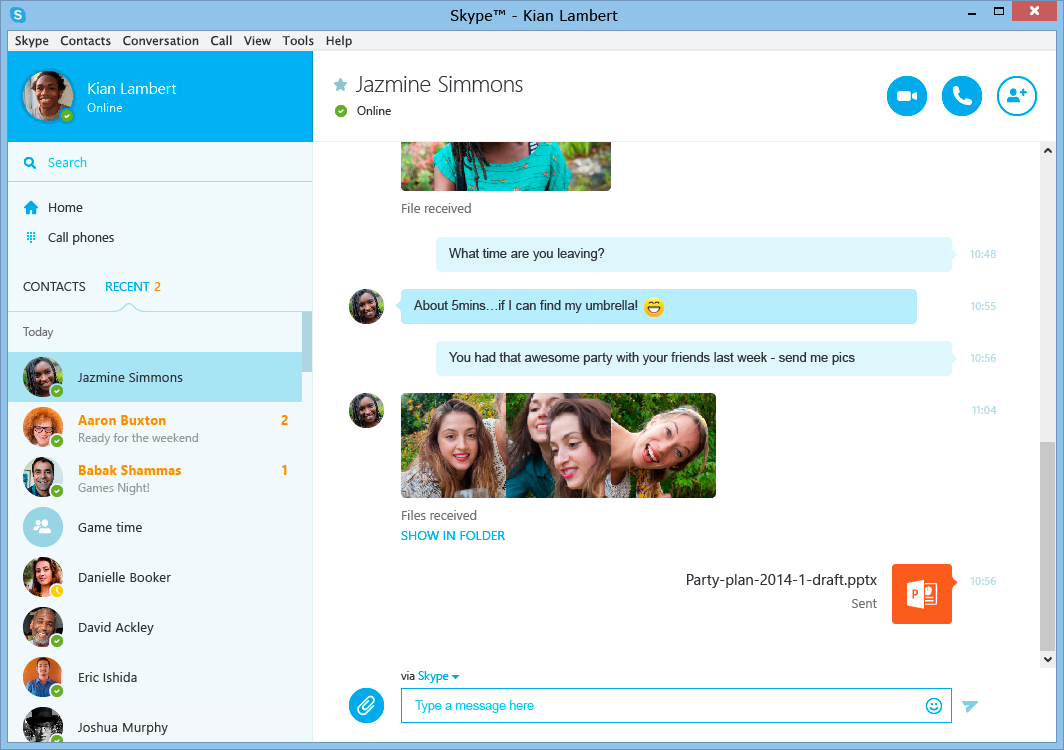
Understanding the Skype interface makes learning how to use Skype significantly easier. The application organizes communication tools into a clean layout that keeps the most important functions visible at all times.
On the left side of the interface, users find the navigation panel. This section displays recent chats, contacts, and call history. Selecting a contact opens a conversation window in the center of the screen.
The conversation window functions as the primary communication space. Here users can exchange text messages, share files, and view past discussions. Above the chat area appear icons for starting voice or video calls.
At the top of the interface, notification indicators inform users about incoming messages or missed calls. These alerts ensure that conversations remain active even when the application runs in the background.
From a usability standpoint, the interface emphasizes simplicity. The design avoids overwhelming menus and instead focuses on a few core communication functions that most users need daily.
Making Voice Calls Through Skype
Voice calls remain one of Skype’s most widely used features. The platform transmits audio through internet connections using Voice over Internet Protocol technology, often referred to as VoIP. This approach allows users to communicate globally without relying on traditional telephone infrastructure.
Starting a call requires only a few clicks. Once a conversation window opens, the user selects the phone icon to begin the call. The recipient receives a notification and can accept the call instantly.
During the conversation, Skype provides several controls that improve communication quality. Participants can mute their microphones, adjust speaker settings, or switch devices if they are using headphones or external microphones.
In situations where internet bandwidth is limited, voice calls remain a reliable option because they require significantly less data than video communication. For this reason, many professionals still prefer audio calls when discussing longer topics or coordinating quick project updates.
Starting Video Calls and Online Meetings

Video calls add a visual dimension to conversations that text and voice alone cannot provide. Skype supports both individual video calls and group meetings, making it suitable for everything from casual conversations to structured team discussions.
To begin a video call, users simply open a chat conversation and select the camera icon. Skype then activates the webcam and connects participants in a video session. Additional participants can join the meeting through invitation links or direct contact invitations.
In many workplace technology environments I have studied, video communication significantly improves engagement during discussions. Seeing facial expressions and body language adds clarity that is often missing in audio-only conversations.
Skype also offers meeting links that allow participants to join calls without being saved as contacts. This feature simplifies coordination for interviews, training sessions, and collaborative meetings.
Using Screen Sharing for Collaboration
Screen sharing transforms Skype from a simple communication tool into a collaborative workspace. Instead of explaining information verbally, users can display their screens and guide others through documents, presentations, or software demonstrations.
During a call, participants can activate screen sharing through a dedicated icon in the call controls. Once enabled, the application broadcasts either a specific window or the entire desktop to other participants.
In consulting sessions and technical training environments I have participated in, screen sharing dramatically improves efficiency. Problems that might take several emails to explain can often be resolved within minutes when participants see the issue directly.
Educational technologist Salman Khan has noted that visual explanations reduce cognitive friction during learning. Screen sharing applies this principle to real time communication.
Skype also allows users to stop sharing instantly, ensuring control over what information remains visible during meetings.
Messaging and File Sharing in Conversations
Messaging plays a central role in everyday communication on Skype. While calls provide immediate interaction, messaging allows conversations to continue asynchronously when participants cannot connect at the same time.
Users can send text messages, images, documents, and links directly within the chat interface. The application automatically uploads files and stores them within the conversation history, making it easy to retrieve shared materials later.
This feature proves especially valuable in collaborative environments. Teams often exchange project documents, reference materials, or meeting notes through messaging channels.
Reactions and emojis also allow participants to respond quickly without interrupting discussions. These small interaction elements help conversations remain dynamic and expressive even in digital spaces.
Because Skype stores conversation history in the cloud, users can return to earlier discussions whenever they need to review shared information.
Managing Notifications and Privacy Settings
Effective communication platforms must balance accessibility with user control. Skype addresses this challenge through customizable notification and privacy settings.
Users can configure alerts for messages, calls, and mentions so that important conversations remain visible without becoming disruptive. These settings appear in the preferences menu and can be adjusted based on personal workflow preferences.
Status indicators also help communicate availability to others. Options such as Available, Busy, Do Not Disturb, and Offline signal when someone is ready to participate in conversations.
Privacy settings allow users to manage who can contact them, block unwanted accounts, or restrict incoming calls from unknown users. These tools help maintain a comfortable communication environment while protecting personal information.
Using Skype Across Multiple Devices
One of Skype’s most practical features is its ability to operate across multiple devices simultaneously. Users can sign in on a desktop computer, smartphone, or tablet and continue conversations seamlessly.
Because Skype synchronizes messages and call history through cloud infrastructure, conversations remain consistent across devices. A message sent from a mobile phone appears instantly on a desktop application and vice versa.
This flexibility supports modern work habits where people frequently switch between devices throughout the day. A meeting might begin on a laptop and continue on a smartphone while traveling.
Cross-device compatibility also allows users to access Skype temporarily through a web browser when installing software is not possible.
Practical Strategies for Learning How to Use Skype Efficiently
Once users understand the basics, a few practical habits can improve efficiency significantly. Learning how to use Skype effectively often comes down to organizing communication rather than mastering complex features.
Pinning important conversations keeps frequently used contacts visible at the top of the chat list. This prevents users from scrolling through long lists when starting calls.
Using meeting links simplifies scheduling conversations with people outside the contact list. Instead of manually adding participants, users can share a link that allows others to join instantly.
Testing audio and video settings before meetings prevents technical delays and ensures conversations begin smoothly. Many experienced users also rely on keyboard shortcuts to mute microphones quickly or start calls without navigating menus.
These small practices help Skype function as a seamless communication environment rather than just another application running on a device.
Key Takeaways
Skype remains a widely recognized communication platform that supports messaging, voice calls, and video meetings across multiple devices. The application’s installation process is simple and requires only a Microsoft account. Once installed, users can build contact networks that allow quick conversations with friends, colleagues, or clients.
Voice calls and video meetings represent the core communication features, while messaging and file sharing support ongoing collaboration. Screen sharing enables users to demonstrate ideas visually, making it useful for training, presentations, and troubleshooting. Notification settings and privacy controls help users maintain focus and manage interactions effectively. Because Skype synchronizes across devices, conversations remain accessible regardless of where users connect.
Conclusion
Digital communication tools continue to evolve rapidly, yet some platforms remain valuable because of their simplicity and familiarity. Skype is one of those tools. Even after decades of technological change, it still provides a dependable environment for connecting people across distance.
From my perspective studying workplace technology adoption, platforms succeed when they remove complexity rather than add new layers of functionality. Skype’s strength lies in its ability to offer messaging, calls, and meetings without overwhelming users with complicated configurations.
For individuals learning how to use Skype, the most important step is simply exploring its core features. Once users become comfortable with contacts, calls, and messaging, the platform naturally becomes part of everyday communication.
Whether connecting with family, coordinating with colleagues, or hosting online discussions, Skype continues to demonstrate how accessible technology can bridge geographic and organizational boundaries.
Read: The Expanding Role of Fast People Search in AI-Driven Identity Discovery
FAQs
What do I need to start using Skype?
You need a device with internet access and a Microsoft account. After installing Skype, you can begin adding contacts and starting conversations.
Can Skype be used for professional meetings?
Yes. Skype supports group video meetings, screen sharing, and file sharing, making it suitable for business communication.
Is Skype available on smartphones?
Yes. Skype provides mobile applications for both Android and iOS devices and synchronizes conversations across devices.
Does Skype allow recording calls?
Yes. Skype includes built-in call recording that participants can activate during meetings.
Can Skype call regular phone numbers?
Yes. Skype offers paid calling credits that allow users to dial landline or mobile numbers globally.
References
Microsoft. (2024). Skype support documentation. https://support.skype.com
Statista. (2024). Skype usage statistics worldwide. https://www.statista.com
Khan, S. (2016). The one world schoolhouse: Education reimagined. Twelve Publishing.
Shirky, C. (2010). Cognitive surplus: Creativity and generosity in a connected age. Penguin Press.