


I approach the question of how to use PowerPoint from the perspective of someone who has seen presentations succeed and fail across classrooms, corporate environments, and digital spaces. Most people searching for this topic want immediate, practical clarity. They want to know how to create slides, add content, and present effectively. The direct answer is simple: open PowerPoint, choose a layout, insert slides, add text or visuals, and present. Yet this answer overlooks the deeper reality. PowerPoint is not just a software tool. It is a framework for organizing thought, structuring information, and guiding audience attention.
In my experience, the effectiveness of a presentation depends less on technical skill and more on clarity of intention. A well-constructed presentation begins with understanding what the audience needs to know and how they will process that information. PowerPoint then becomes a medium for translating that understanding into visual form. This is particularly relevant in today’s environment, where presentations are often delivered remotely, shared digitally, and expected to compete with constant distractions.
The evolution of PowerPoint has also changed how it is used. With the integration of AI-driven design suggestions, cloud collaboration, and multimedia capabilities, the tool now supports a level of sophistication that was not possible a decade ago. Learning how to use PowerPoint effectively therefore requires both technical familiarity and an awareness of how communication itself is changing.
Understanding PowerPoint as a Structured Thinking Tool
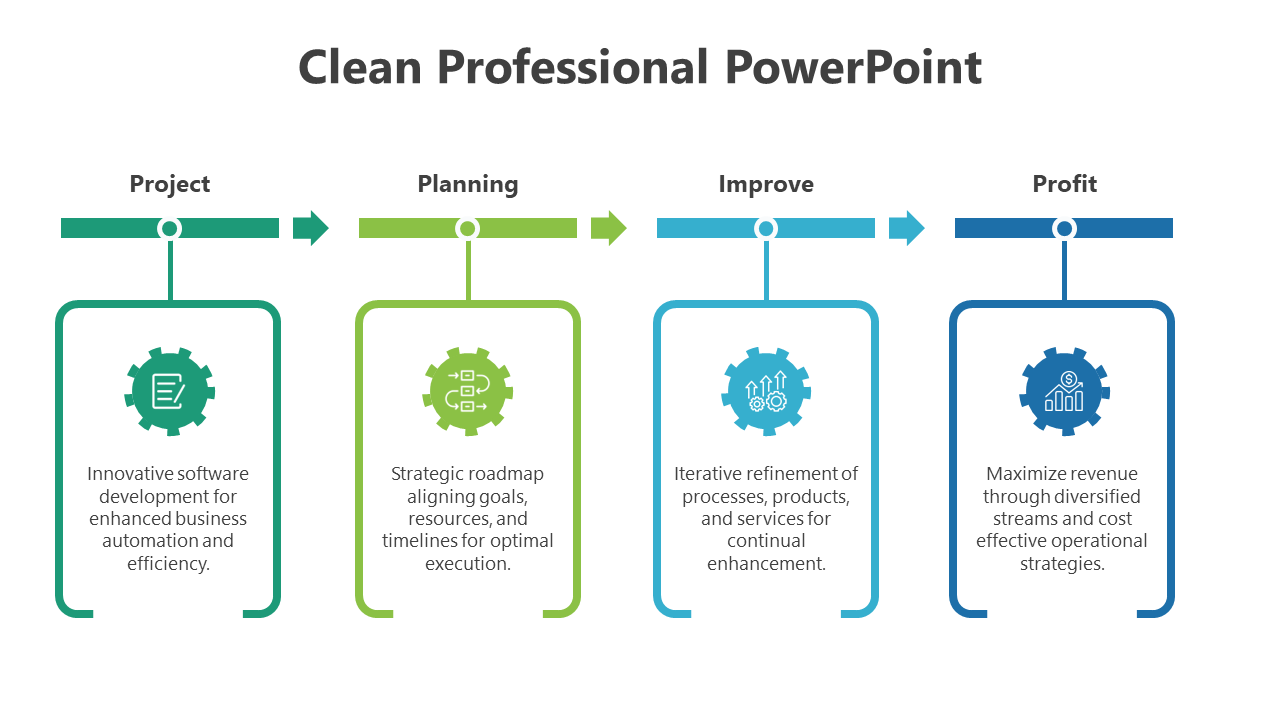
I find that the most overlooked aspect of PowerPoint is its role as a structured thinking tool. Each slide is not just a container for information but a deliberate unit within a sequence. When I build presentations, I think in terms of progression. What does the audience know at the beginning, and what should they understand by the end? PowerPoint provides a way to map that journey visually.
This structured approach becomes especially important in professional environments. In business settings, presentations often support decision-making processes. In education, they facilitate learning. In both cases, clarity and sequence are critical. Slides should not exist independently. They should connect logically, each one advancing the narrative.
I have observed that when presenters skip this planning phase, the result is often disjointed slides that fail to communicate effectively. Conversely, when the structure is clear from the outset, the design and content choices become more intuitive. PowerPoint, in this sense, acts as both a planning tool and a delivery mechanism, shaping how ideas are developed and communicated.
Building a Presentation from Outline to Execution
I always begin by outlining the presentation before opening PowerPoint. This step is often skipped, yet it is one of the most important. An outline forces clarity. It identifies key points, organizes them into sections, and establishes a logical flow.
Once the outline is complete, translating it into slides becomes a process of refinement rather than discovery. Each section of the outline corresponds to a group of slides, and each slide represents a specific idea. This approach prevents overcrowding and ensures that the presentation remains focused.
In practical terms, I recommend thinking of each slide as answering a single question. What is the one thing the audience should take away from this slide? If a slide attempts to convey multiple ideas, it risks diluting its impact.
This method also improves efficiency. Instead of repeatedly revising slides, the presenter works from a clear framework. The result is a presentation that feels intentional rather than assembled, with each element serving a defined purpose.
The Role of Design in Cognitive Clarity
I approach design not as decoration but as a tool for clarity. Effective slide design reduces cognitive load, allowing the audience to focus on the message rather than the format. This principle is supported by research in cognitive psychology, which shows that people process visual information more efficiently when it is presented clearly and consistently.
In my experience, the most effective slides are often the simplest. They use minimal text, clear fonts, and consistent layouts. High contrast between text and background improves readability, while consistent spacing and alignment create a sense of order.
One of the most common mistakes I see is the use of slides as scripts. When slides contain large blocks of text, the audience is forced to read rather than listen. This divides attention and reduces engagement. Instead, slides should highlight key points, leaving the detailed explanation to the presenter.
Design also influences perception. A well-designed presentation conveys professionalism and credibility, while a cluttered or inconsistent design can undermine the message, regardless of its quality.
Integrating Visuals to Enhance Understanding
I have consistently found that visuals are one of the most powerful elements in a presentation. Images, charts, and diagrams can convey complex ideas more effectively than text alone. However, their effectiveness depends on how they are used.
Visuals should always serve a purpose. They should clarify, illustrate, or reinforce the message. Decorative images that do not contribute to understanding can distract rather than enhance.
When working with data, I focus on simplicity and clarity. Charts should highlight key trends without unnecessary detail. Labels should be clear, and colors should be used strategically to guide attention.
The integration of visuals also reflects broader changes in communication. In a world where attention spans are limited, visual elements play a crucial role in maintaining engagement. PowerPoint provides the tools to incorporate these elements, but their effectiveness depends on thoughtful application.
Leveraging AI Features for Efficiency
Modern versions of PowerPoint include AI-driven features that can significantly improve workflow. Tools such as design suggestions, automated layouts, and content recommendations allow users to create presentations more quickly and with less effort.
I have used these features in time-sensitive situations, and they provide a strong starting point. However, they are not a substitute for critical thinking. The suggestions generated by AI are based on patterns, not context. It is the user’s responsibility to ensure that the design aligns with the message.
The integration of AI into PowerPoint reflects a broader trend in software development. Automation is increasingly used to handle repetitive tasks, allowing users to focus on higher-level decisions. In the context of presentations, this means spending less time on formatting and more time on content.
This shift has implications for how presentations are created. As tools become more powerful, the emphasis moves from technical skill to conceptual clarity.
Delivering Presentations with Impact
I consider delivery to be as important as slide creation. A well-designed presentation can lose its effectiveness if it is not delivered clearly. PowerPoint includes features such as presenter view, which allows speakers to see notes and upcoming slides, supporting more confident delivery.
In practice, effective delivery involves maintaining eye contact, controlling pacing, and using slides as prompts rather than scripts. The presenter should guide the audience through the material, using the slides to reinforce key points.
Rehearsal plays a critical role in this process. Familiarity with the content allows the presenter to focus on engagement rather than navigation. It also helps identify areas where the presentation may need refinement.
The goal is to create a seamless experience where the slides and the speaker work together. When this balance is achieved, the presentation becomes more than a sequence of slides. It becomes a cohesive and engaging narrative.
Collaboration and Modern Workflows
I have observed that PowerPoint has evolved into a collaborative tool, particularly with the integration of cloud-based features. Multiple users can now work on the same presentation simultaneously, making it easier to coordinate efforts in team environments.
This capability is particularly valuable in professional settings, where presentations often involve input from multiple stakeholders. Changes can be tracked, comments can be added, and revisions can be made in real time.
Collaboration also introduces new challenges. Maintaining consistency across contributions requires clear guidelines and communication. Without these, presentations can become fragmented, with inconsistent design and messaging.
Despite these challenges, the benefits of collaboration are significant. It allows for more diverse input, faster development, and greater flexibility. In a world where remote work is increasingly common, these capabilities are essential.
Avoiding Common Pitfalls
I frequently encounter the same mistakes when reviewing presentations. These include overcrowded slides, inconsistent design, excessive animations, and lack of structure. Each of these issues can reduce the effectiveness of a presentation.
Overcrowded slides are particularly problematic. When too much information is presented at once, the audience struggles to process it. Breaking content into multiple slides can improve clarity and pacing.
Inconsistent design can create confusion. Using different fonts, colors, and layouts disrupts the visual flow and makes the presentation harder to follow. Consistency reinforces structure and improves readability.
Animations, while useful in moderation, can become distracting when overused. The focus should remain on the content, not the effects.
By being aware of these pitfalls, users can avoid common errors and create more effective presentations.
The Broader Role of PowerPoint in Modern Communication
I see PowerPoint as more than a presentation tool. It is part of a broader shift in how information is communicated. In many cases, slides are shared independently of presentations, serving as standalone documents that convey information without a speaker.
This dual role, as both presentation and document, influences how slides are designed. They must be clear enough to stand alone while still supporting live delivery. This balance requires careful consideration of content and structure.
The integration of AI, cloud collaboration, and multimedia capabilities further expands the role of PowerPoint. It is no longer confined to traditional settings. It is used in virtual meetings, online courses, and digital marketing.
Understanding how to use PowerPoint effectively therefore involves recognizing its place within a larger communication ecosystem. It is a tool that adapts to different contexts, supporting a wide range of applications.
Takeaways
- PowerPoint is a structured communication system, not just software.
- Effective presentations begin with clear outlines and logical flow.
- Design should prioritize clarity and reduce cognitive load.
- Visuals enhance understanding when used purposefully.
- AI features improve efficiency but require human judgment.
- Delivery and engagement are as important as slide content.
Conclusion
I find that learning how to use PowerPoint effectively is ultimately about understanding communication. The software provides the tools, but the effectiveness of a presentation depends on how those tools are used. Clarity, structure, and intention are the guiding principles.
As technology continues to evolve, PowerPoint will likely become even more integrated with AI and collaborative systems. These developments will change how presentations are created and delivered, but the fundamental goal will remain the same: to communicate ideas clearly and effectively.
The challenge for users is not simply to keep up with new features but to use them thoughtfully. By focusing on the principles of good communication, users can create presentations that are not only visually appealing but also meaningful and impactful.
FAQs
What is the best way to start using PowerPoint?
Begin with a clear outline of your ideas before creating slides to ensure structure and clarity.
How can I improve slide design?
Use minimal text, consistent layouts, and high-contrast colors to enhance readability and focus.
Are visuals necessary in presentations?
Yes, visuals help convey information more effectively and maintain audience engagement.
Can PowerPoint be used for collaboration?
Yes, cloud features allow multiple users to edit and review presentations simultaneously.
What is the biggest mistake in PowerPoint?
Overloading slides with text, which reduces clarity and audience engagement.
References
Duarte, N. (2010). Resonate: Present visual stories that transform audiences. Wiley.
Tufte, E. R. (2001). The visual display of quantitative information. Graphics Press.
Microsoft. (2023). PowerPoint features overview. Retrieved from https://www.microsoft.com/
Stanford University. (2020). Visual communication research. Retrieved from https://www.stanford.edu/
Harvard University. (2019). Presentation and communication studies. Retrieved from https://www.harvard.edu/