
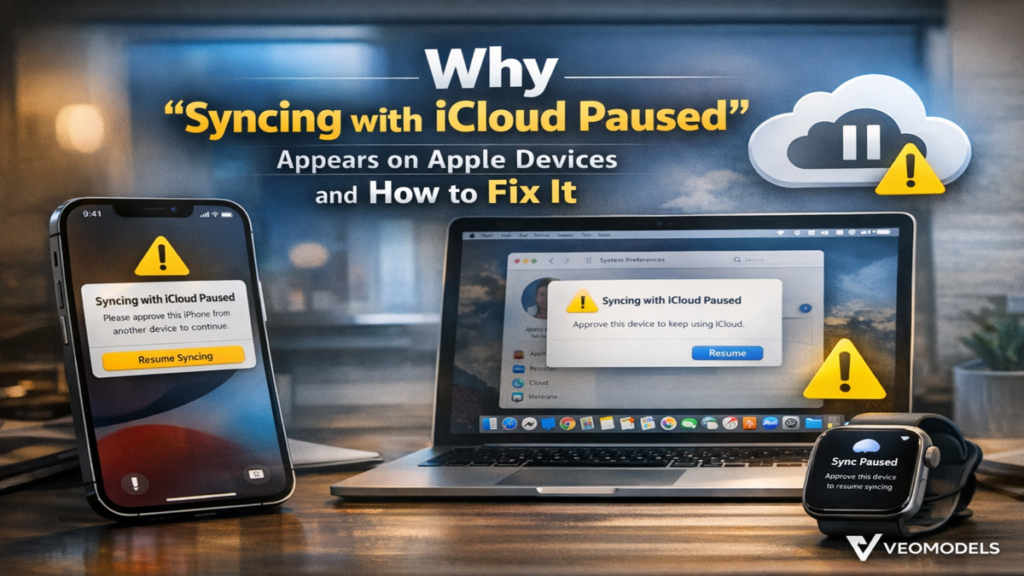

While researching how cloud ecosystems keep data consistent across multiple devices, I have often noticed that small system notifications can cause disproportionate confusion for users. One of the most common examples is the message “Syncing with iCloud Paused.” This notification frequently appears on iPhones, iPads, and Mac computers, usually when the system temporarily stops transferring data to Apple’s cloud servers. The phrase may sound like a technical failure, yet in most situations it simply reflects Apple’s built-in resource management mechanisms designed to protect the device and preserve data reliability.
The message “Syncing with iCloud Paused” typically appears when the operating system detects conditions that could interrupt normal background synchronization. These conditions may include low battery levels, power-saving settings such as Low Power Mode, limited cloud storage capacity, unstable internet connectivity, or temporary configuration inconsistencies within the device. Apple’s operating systems are designed to pause cloud operations rather than risk incomplete uploads or data corruption when system conditions are not optimal.
Understanding the logic behind this behavior makes troubleshooting much easier. Instead of treating the notification as a system error, users can approach it as a temporary pause triggered by specific environmental factors. In most cases, correcting the underlying condition allows synchronization to resume automatically without requiring advanced technical intervention.
From a technological standpoint, Apple’s approach reflects a broader principle in cloud infrastructure design: reliability must always take priority over immediacy. Synchronization systems must ensure that files, photos, messages, and backups transfer correctly across devices, even when networks fluctuate or device resources become limited. This guide explores the underlying reasons why the notification appears and explains how users can quickly restore normal synchronization across their Apple devices.
How iCloud Synchronization Works Across Apple Devices
Apple’s iCloud service operates as a distributed cloud platform that maintains consistent copies of user data across multiple devices. Instead of storing files exclusively on a single device, iCloud continuously compares local data with the cloud version stored on Apple’s servers. Whenever a change occurs, such as a new photo being taken or a document being edited, the system schedules a background synchronization task that uploads the updated data to the cloud.
This architecture allows users to access the same information across iPhones, iPads, Macs, and even web interfaces without manually transferring files. For example, a photo captured on an iPhone can appear almost instantly on a MacBook because the device uploads it to iCloud, which then distributes it to other linked devices.
However, synchronization requires coordination between device resources, internet connectivity, and cloud server availability. The system must package data securely, encrypt the transmission, verify the upload, and confirm that the new version matches across devices. Because this process depends on stable system conditions, Apple designed safeguards that temporarily pause syncing if the device detects potential risks.
These pauses are not failures. Instead, they represent a protective mechanism within Apple’s cloud ecosystem. The operating system simply waits until conditions such as battery power, network quality, or storage capacity return to acceptable levels before resuming synchronization tasks.
What the “Syncing with iCloud Paused” Message Indicates
When the notification “Syncing with iCloud Paused” appears, the operating system is communicating that the device has temporarily halted background cloud operations. The pause occurs because continuing the synchronization process might negatively affect system performance, battery life, or data integrity.
Apple’s operating systems constantly evaluate environmental factors before allowing large data transfers to occur. If the system detects low battery levels or limited network stability, it may suspend background activities such as iCloud synchronization, app refresh processes, and automated backups. This behavior helps ensure that essential device functions remain stable even when resources become constrained.
The message itself functions as a status notification rather than an error alert. It simply informs the user that synchronization will continue once the limiting condition improves. For instance, if the pause occurs because the device entered Low Power Mode, disabling that feature typically allows syncing to resume within seconds.
In many situations, users do not even need to intervene manually. Once the device connects to a stable Wi-Fi network, finishes charging, or exits a battery-saving state, the operating system automatically resumes synchronization and completes pending transfers. The notification disappears once the process restarts.
Battery Management and Its Impact on Cloud Syncing
Battery conservation features play a significant role in why synchronization pauses occur on Apple devices. Modern smartphones and tablets contain advanced power management systems that prioritize essential functions when battery levels become low. These systems ensure that core tasks such as communication, navigation, and emergency services remain available even when energy resources decline.
Low Power Mode is one of the most common triggers behind the “Syncing with iCloud Paused” message. When enabled, this feature reduces background processes that consume energy. Automatic downloads, email fetching, and iCloud synchronization may all be temporarily disabled to extend battery life.
The design decision reflects Apple’s broader approach to energy efficiency. Cloud synchronization can require substantial processing power and network activity, particularly when uploading large media files such as photos or videos. Continuing these transfers while battery levels are critically low could significantly shorten device usability.
For this reason, Apple allows the device to temporarily suspend syncing until the battery reaches a safer threshold or Low Power Mode is turned off. Once normal power conditions return, the device quietly resumes uploading pending data to iCloud without requiring additional user interaction.
Storage Limitations and Cloud Synchronization Interruptions
Another frequent cause of synchronization pauses involves limited iCloud storage capacity. Every Apple account receives a fixed amount of cloud storage, and once that space becomes full, the system cannot upload new data until storage is freed or expanded.
Photos and device backups often consume the largest portion of cloud storage. High resolution images and videos can accumulate rapidly, especially for users who regularly capture media on their devices. When the storage quota reaches its limit, the operating system halts uploads to prevent incomplete transfers.
Users encountering synchronization pauses should therefore check their iCloud storage usage. Removing outdated backups, deleting unnecessary files, or upgrading the storage plan can restore normal synchronization. Once sufficient space becomes available, the system automatically resumes uploading pending files.
This behavior highlights an important aspect of cloud infrastructure management. Storage limits are necessary to maintain efficient resource allocation across millions of users. By pausing uploads when storage reaches capacity, Apple ensures that the cloud environment remains stable and that data transfers occur only when adequate space exists.
The Role of Network Stability in iCloud Syncing
Internet connectivity remains one of the most critical components of any cloud synchronization system. Even minor disruptions in network stability can interrupt data transfers between devices and remote servers. Apple’s operating systems monitor connection quality continuously to determine whether synchronization tasks should proceed.
Large file transfers, particularly those involving photo libraries or device backups, require sustained bandwidth and stable connections. If the device detects repeated interruptions during transmission, the system may pause syncing until network conditions improve. This approach prevents partial uploads that could otherwise lead to inconsistent data across devices.
Users experiencing the “Syncing with iCloud Paused” notification should evaluate their internet connection. Weak Wi-Fi signals, overloaded routers, or unstable cellular networks can all interfere with cloud synchronization. Connecting to a stronger network or restarting the router often resolves the issue quickly.
Cloud engineers frequently emphasize that network reliability remains the most unpredictable variable in distributed computing systems. Apple’s decision to pause synchronization during unstable connections reflects a cautious strategy designed to maintain consistent and reliable data across the entire ecosystem.
Device Configuration and System Settings
Certain device settings can unintentionally interfere with iCloud synchronization. One of the most overlooked factors involves the device’s date and time configuration. Apple’s cloud infrastructure relies on accurate timestamps to authenticate requests and verify encrypted communications. If the device clock differs significantly from the network time, synchronization may pause as a security precaution.
Enabling automatic date and time settings typically resolves this issue. When the device synchronizes its clock with network servers, communication with Apple’s cloud infrastructure proceeds normally.
Another setting that may affect synchronization is Low Data Mode. This feature limits background network activity when using cellular data connections. While useful for conserving mobile data usage, it can restrict cloud services that rely on continuous background connectivity.
Disabling Low Data Mode or switching to a standard data mode allows the device to perform normal synchronization operations. These adjustments ensure that iCloud services can communicate freely with Apple’s servers and complete pending uploads.
Restarting Devices and Updating Software
When synchronization pauses persist despite correcting battery, storage, and network conditions, restarting the device often provides a simple solution. Temporary software glitches can occasionally interfere with background services, and a restart clears many of these minor system inconsistencies.
Operating system updates also play an important role in maintaining reliable cloud synchronization. Apple regularly releases software updates that improve performance, fix bugs, and enhance system stability. Installing the latest version of iOS or macOS ensures that the device uses the most current synchronization protocols and security improvements.
Network settings resets represent another troubleshooting step when persistent connectivity problems occur. Resetting network configurations removes saved Wi-Fi networks and clears outdated connection data that may interfere with cloud services. After reconnecting to a network, the device often resumes synchronization immediately.
These steps illustrate a broader principle of modern software systems: temporary glitches can arise from complex interactions between applications, network services, and operating systems. Restarting or updating the system helps restore a stable environment for cloud operations.
Why Apple Chooses to Pause Rather Than Continue Syncing
From an engineering perspective, Apple’s decision to pause synchronization under certain conditions reflects a thoughtful design philosophy. Cloud ecosystems must balance performance, efficiency, and reliability across a massive global infrastructure.
Allowing synchronization to continue during unstable conditions could lead to incomplete file uploads, corrupted backups, or mismatched data across devices. By temporarily pausing transfers, the system ensures that each synchronization event completes correctly once the environment becomes stable.
This approach also protects battery resources and network bandwidth. Devices often operate under varying conditions, such as weak mobile signals or limited battery reserves. Pausing nonessential processes allows essential functions to remain available while still preserving data integrity.
Ultimately, the temporary pause serves as a safeguard rather than a limitation. It ensures that cloud synchronization occurs only when the device can complete the process reliably, maintaining consistency across Apple’s entire ecosystem.
Takeaways
• The notification “Syncing with iCloud Paused” usually reflects temporary system conditions rather than a technical error.
• Low Power Mode is one of the most common reasons synchronization stops on Apple devices.
• Limited iCloud storage can prevent files, photos, or backups from uploading to the cloud.
• Unstable internet connections frequently interrupt background cloud transfers.
• Device settings such as incorrect time configuration or Low Data Mode may also trigger pauses.
• Restarting the device or updating software often resolves persistent synchronization issues.
Conclusion
Cloud synchronization has become an essential component of the modern digital experience. Users expect photos, messages, and documents to appear seamlessly across all of their devices without manual effort. Apple’s iCloud system delivers this capability by continuously coordinating data between local devices and remote servers.
When the message “Syncing with iCloud Paused” appears, it may initially seem like a malfunction. In reality, the notification represents a protective measure designed to preserve system performance and data integrity. Battery conservation settings, storage limits, unstable networks, or configuration inconsistencies can all trigger temporary pauses in synchronization.
Understanding these triggers allows users to address the underlying conditions quickly. Checking storage availability, disabling Low Power Mode, ensuring stable internet connectivity, and verifying device settings often restore normal syncing within minutes.
From a broader technological perspective, this behavior reflects a responsible cloud infrastructure strategy. By prioritizing reliability and resource management, Apple ensures that synchronization occurs safely and accurately across its entire ecosystem. Once the limiting condition improves, iCloud quietly resumes its work, keeping data synchronized across every connected device.
FAQs
Why does my iPhone say syncing with iCloud paused?
This message usually appears when the device detects conditions such as low battery, storage limitations, or unstable internet connections that could interrupt synchronization.
Does syncing automatically resume after being paused?
Yes. In most cases, synchronization resumes automatically once the underlying condition improves, such as when the device reconnects to Wi-Fi or exits Low Power Mode.
Can full iCloud storage stop syncing?
Yes. When storage reaches its limit, new files cannot upload to the cloud until space becomes available or the storage plan is expanded.
Will restarting my phone fix the issue?
Restarting the device can resolve temporary software glitches that interfere with background cloud services, allowing syncing to resume normally.
Does Low Power Mode affect iCloud syncing?
Yes. Low Power Mode reduces background activity to conserve battery life, which can temporarily pause cloud synchronization.