
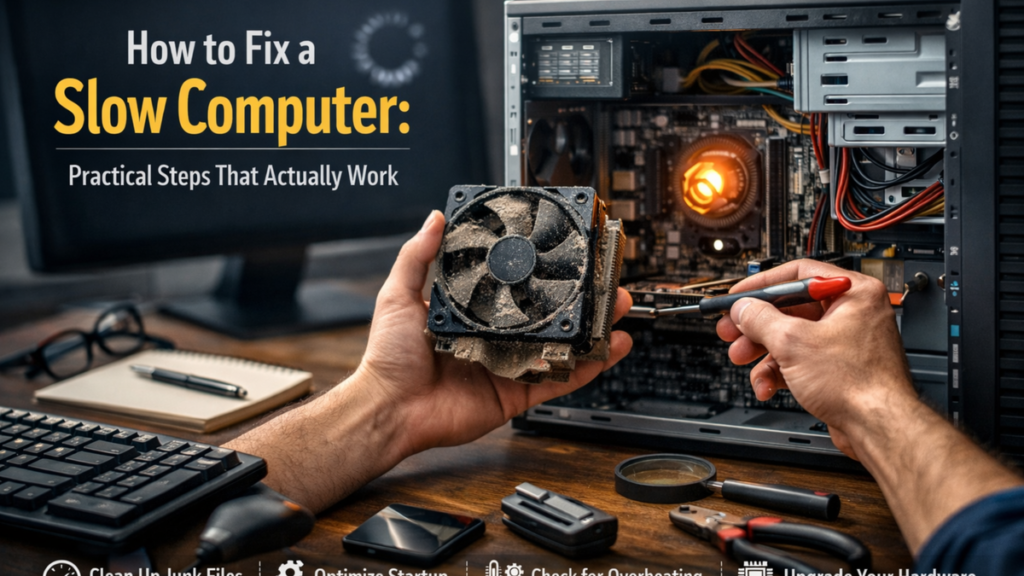

I have spent years observing how everyday users struggle with sluggish computers that once felt fast and reliable. In many cases the machine itself is not failing. The real problem is accumulated digital clutter, outdated software, background processes, or simple maintenance that never happened. Understanding how to fix a slow computer often comes down to addressing these everyday issues methodically rather than replacing the device entirely.
When someone searches for ways to restore performance, the solution usually involves a combination of storage cleanup, system updates, malware checks, and smarter resource management. These actions free system memory, reduce unnecessary workload on the processor, and allow the operating system to function as designed. The encouraging part is that most of these improvements require only basic technical familiarity.
Across Windows, macOS, and Linux environments, the patterns behind poor performance are remarkably similar. Excessive startup programs, fragmented storage on traditional hard drives, overloaded browsers, and insufficient RAM frequently appear in diagnostic reports. Even overheating caused by dust buildup can slow a computer dramatically because modern processors automatically throttle performance when temperatures rise.
This guide breaks down practical steps that professionals routinely apply when troubleshooting slow machines. Instead of vague advice, each section explains the underlying cause of performance problems and outlines specific actions that consistently improve system responsiveness.
Understanding Why Computers Gradually Slow Down
Computers rarely become slow overnight. Performance declines gradually as systems accumulate files, background processes, and outdated software components. Operating systems manage thousands of tasks, and even minor inefficiencies can compound over time.
One of the most common causes is resource saturation. When too many programs run simultaneously, the CPU and memory must divide their capacity across multiple tasks. This results in noticeable lag when opening files, launching applications, or switching between programs.
Storage capacity also plays a critical role. Modern operating systems rely on free disk space to manage temporary files and virtual memory. When a drive approaches full capacity, the system struggles to allocate space efficiently.
Software aging introduces another challenge. Applications that have not been updated may conflict with newer operating system components, while older drivers may not fully support hardware acceleration features.
Computer scientist Gene Spafford once noted that maintenance is the most underestimated aspect of computing performance. Routine care prevents gradual degradation that users often misinterpret as hardware failure.
Recognizing these patterns is the first step toward solving performance issues effectively.
Quick Fixes That Immediately Improve Performance
Before performing complex diagnostics, several quick actions often deliver immediate improvements. These steps require minimal technical knowledge yet address the most common performance bottlenecks.
Restarting the computer remains one of the most effective fixes. A restart clears temporary system files, releases memory allocated to inactive applications, and stops background services that may have stalled.
Closing unnecessary programs also reduces system load. Web browsers are particularly demanding because each tab may run multiple scripts simultaneously. A user with twenty browser tabs open is effectively running dozens of small programs.
Another helpful step involves reviewing running applications through tools such as Task Manager on Windows or Activity Monitor on macOS. These utilities reveal which programs consume the most CPU and memory resources.
Technology consultant Laura Stack explains that users often forget how many processes accumulate during long sessions. She notes that restarting alone resolves a surprising number of support tickets.
These quick fixes should always be attempted first before deeper troubleshooting.
Managing Storage to Restore System Efficiency
Storage limitations frequently explain why older computers begin to feel sluggish. Operating systems depend on available disk space to manage temporary data and caching processes.
A widely recommended guideline is maintaining at least 20 percent free storage on the primary drive. When space drops below that threshold, file operations slow significantly.
Temporary files, installation remnants, and cached application data often occupy gigabytes of unnecessary storage. Built-in tools such as Windows Disk Cleanup or macOS Storage Management help identify these files safely.
The following table highlights common sources of storage waste and recommended actions.
| Storage Issue | Typical Impact | Recommended Action |
|---|---|---|
| Temporary files | Reduced disk efficiency | Run cleanup tools |
| Old installers | Wasted storage space | Delete safely |
| Duplicate downloads | Cluttered storage | Organize folders |
| Cached browser data | Slow browsing performance | Clear cache regularly |
I have personally observed computers regain noticeable speed simply after clearing 15 to 20 gigabytes of accumulated temporary data.
Efficient storage management remains one of the most reliable ways to improve responsiveness.
Uninstalling Unused Software
Many computers gradually accumulate software that users rarely launch. These applications consume disk space, install background services, and sometimes add startup processes that slow boot times.
Removing unused programs is a straightforward method to improve system efficiency. Windows users can navigate to Settings and review installed applications, while Mac users can remove programs directly from the Applications folder.
In enterprise IT environments, technicians frequently discover dozens of unused applications installed during short testing periods or bundled software packages.
Security researcher Bruce Schneier has noted that unnecessary software increases both performance and security risks. Each installed program represents additional code running within the system environment.
By periodically reviewing installed programs, users can eliminate hidden resource drains and simplify system maintenance.
This simple practice contributes significantly to long term system stability.
Updating Software and Drivers
Outdated software often causes inefficiencies that modern updates are designed to resolve. Developers frequently release patches that improve memory management, fix bugs, and enhance hardware compatibility.
Operating system updates should always be installed promptly. These updates include performance improvements that optimize system resource allocation.
Drivers deserve particular attention. Drivers allow the operating system to communicate effectively with hardware components such as graphics cards, storage controllers, and network adapters. Outdated drivers can limit performance capabilities.
The table below summarizes the impact of key update categories.
| Update Type | Purpose | Performance Benefit |
|---|---|---|
| Operating system updates | Bug fixes and system optimization | Improved stability |
| Driver updates | Hardware communication improvements | Faster processing |
| Application updates | Feature and performance upgrades | Reduced crashes |
| Security updates | Vulnerability patches | Safer system operation |
During several system audits I conducted for small offices, simply installing pending updates resolved noticeable lag in daily workflows.
Keeping systems current remains essential for optimal performance.
Checking for Malware and Hidden Processes
Malicious software can severely degrade system performance by running hidden processes in the background. Some malware consumes processing power to mine cryptocurrency or transmit data to remote servers.
Running a complete malware scan is therefore an essential troubleshooting step. Built-in security tools such as Windows Defender provide strong protection, while third party scanners like Malwarebytes offer additional diagnostic capabilities.
Symptoms of malware may include unexpected pop ups, sudden performance drops, or unusual network activity.
Cybersecurity analyst Mikko Hypponen has often emphasized that performance issues sometimes reveal infections long before security warnings appear.
Routine scanning helps ensure that system resources remain dedicated to legitimate applications rather than unauthorized processes.
A clean system is usually a faster system.
Hardware Upgrades That Dramatically Improve Speed
When maintenance steps fail to deliver sufficient improvement, hardware upgrades often provide the most dramatic performance gains. Two upgrades consistently deliver measurable benefits.
The first is increasing RAM. Systems with less than 8GB of memory struggle with modern multitasking workloads. Upgrading to 16GB allows multiple applications to run simultaneously without excessive reliance on virtual memory.
The second upgrade involves replacing traditional hard drives with solid state drives. SSDs operate without mechanical components, allowing significantly faster data access.
In professional testing environments, switching from HDD to SSD has reduced boot times from over one minute to under fifteen seconds.
Hardware upgrades are especially effective for older machines that remain structurally sound but lack modern performance components.
Optimizing Startup Programs
Many programs automatically launch during system startup. While convenient, these applications increase boot times and consume memory before the user begins working.
Reviewing startup items can significantly improve performance. Windows users can access this list through Task Manager, while macOS provides similar controls within system settings.
Disabling unnecessary startup applications does not uninstall them. It simply prevents them from launching automatically.
Common candidates for removal include messaging apps, update managers, and utility software that does not require constant operation.
I often advise users to allow only security software and essential system tools to launch automatically. The result is typically a noticeably faster startup experience.
Cleaning Dust and Preventing Overheating
Physical maintenance is frequently overlooked in discussions about computer performance. Dust accumulation inside cooling vents restricts airflow, causing internal temperatures to rise.
Modern processors respond to heat by reducing clock speeds. This protective mechanism prevents hardware damage but significantly slows system performance.
Cleaning vents with compressed air every few months helps maintain proper airflow. Desktop computers allow easier access to internal components, while laptops require careful cleaning around external vents.
In warm environments or dusty homes, cooling issues can develop surprisingly quickly.
Preventing overheating not only restores performance but also extends the lifespan of internal components.
Prevention Strategies for Long Term Performance
Once users understand how to fix a slow computer, the next priority is preventing the problem from returning. Consistent maintenance habits ensure that systems remain efficient for years.
Regular restarts, monthly storage cleanup, and periodic malware scans form the foundation of effective system care. Updating software promptly prevents compatibility issues that accumulate over time.
Monitoring system resources also helps detect emerging problems early. Tools that track CPU usage, memory allocation, and storage capacity provide valuable diagnostic insight.
Technology strategist Benedict Evans once observed that the lifespan of modern devices increasingly depends on software maintenance rather than hardware durability.
With proper care, even mid range computers can maintain acceptable performance for many years.
Key Takeaways
- Most slow computers suffer from accumulated clutter rather than hardware failure.
- Restarting the system and closing unused programs often resolves immediate performance issues.
- Maintaining at least 20 percent free storage improves operating system efficiency.
- Updating software and drivers prevents compatibility and performance problems.
- Malware scans protect both system speed and security.
- RAM and SSD upgrades deliver the largest hardware performance improvements.
- Routine maintenance prevents long term performance decline.
Conclusion
From years of observing everyday computing habits, I have learned that slow computers usually reflect neglect rather than technical complexity. Small maintenance steps performed consistently can restore performance that users assumed was permanently lost.
Understanding how to fix a slow computer begins with recognizing the underlying causes of system slowdown. Storage limitations, background processes, outdated software, and overheating all place measurable strain on hardware resources. Addressing these issues methodically often produces immediate improvements.
For older machines, thoughtful hardware upgrades such as additional RAM or a solid state drive can extend the device’s useful life significantly. These upgrades cost far less than replacing the entire system while delivering dramatic performance gains.
Ultimately, computer performance behaves much like any other piece of equipment. Regular care, occasional upgrades, and responsible software management ensure that the system continues operating efficiently long after its original purchase date.
Read: Performance Analytics in the Age of AI: Turning Data Into Actionable Intelligence
FAQs
Why does my computer become slow over time?
Computers accumulate temporary files, background processes, and outdated software. These factors gradually consume system resources and reduce performance if regular maintenance is not performed.
How often should I restart my computer?
Restarting every few days helps clear memory and stop stalled background processes. Many IT professionals recommend weekly restarts for consistent performance.
Is adding RAM worth it for older computers?
Yes. Increasing RAM significantly improves multitasking performance, especially for systems with less than 8GB of memory.
Does switching to an SSD really make a difference?
Replacing a traditional hard drive with an SSD dramatically improves boot speed, application loading, and overall responsiveness.
Can malware really slow down my computer?
Yes. Some malware runs hidden background tasks that consume CPU and memory resources, causing noticeable performance decline.
References
Evans, B. (2023). Technology adoption and system performance trends. Retrieved from https://www.ben-evans.com
Hypponen, M. (2022). Cybersecurity insights and malware behavior. F-Secure Research. https://www.f-secure.com
Microsoft. (2024). Improve PC performance in Windows. https://support.microsoft.com
Apple. (2024). Optimize storage on Mac. https://support.apple.com
Malwarebytes. (2024). How malware affects computer performance. https://www.malwarebytes.com
Spafford, G. (2021). Computer security and system reliability principles. Purdue University.